
Pipelines
A pipeline runs a saved set of steps for one task. Each step is its own session, under the session you started it from:
Add a usage cost toggle ← the session you run it from├─ Plan Opus · plan mode├─ Execute Sonnet · fork of Plan├─ Validate Opus · read only (round 2 when it found changes)└─ Push commit, push, pull request (waits for you)Plan it with Opus, build it with Sonnet, have a fresh session check the diff and the tests, then push and open a pull request. Seshboard starts each step when the one before is done, and stops when it needs you.
Run a pipeline
Section titled “Run a pipeline”- From a session: in the session’s ⋯ menu, or when you right-click it in the sidebar, choose Run pipeline › and a pipeline. That session becomes the parent: the steps start with what you two discussed.
- From New session: write the task, then pick a pipeline in the Run as chip next to Start (it says One session until you do). Start becomes Run pipeline, and the steps show under the message box, with Change to pick another. Start ▾ › Start one session starts a single session instead. There is no conversation yet, so the run gets a row of its own in the sidebar that holds the task and the steps.
- From the command palette: Run pipeline… runs one from the session you are in. Pipelines: pick one… opens a pipeline in Settings.
- From your phone: see Remote on your phone.
The run works in one folder: a new worktree from the parent’s branch, or the parent’s worktree when it has one. Every step works there.
Follow a run
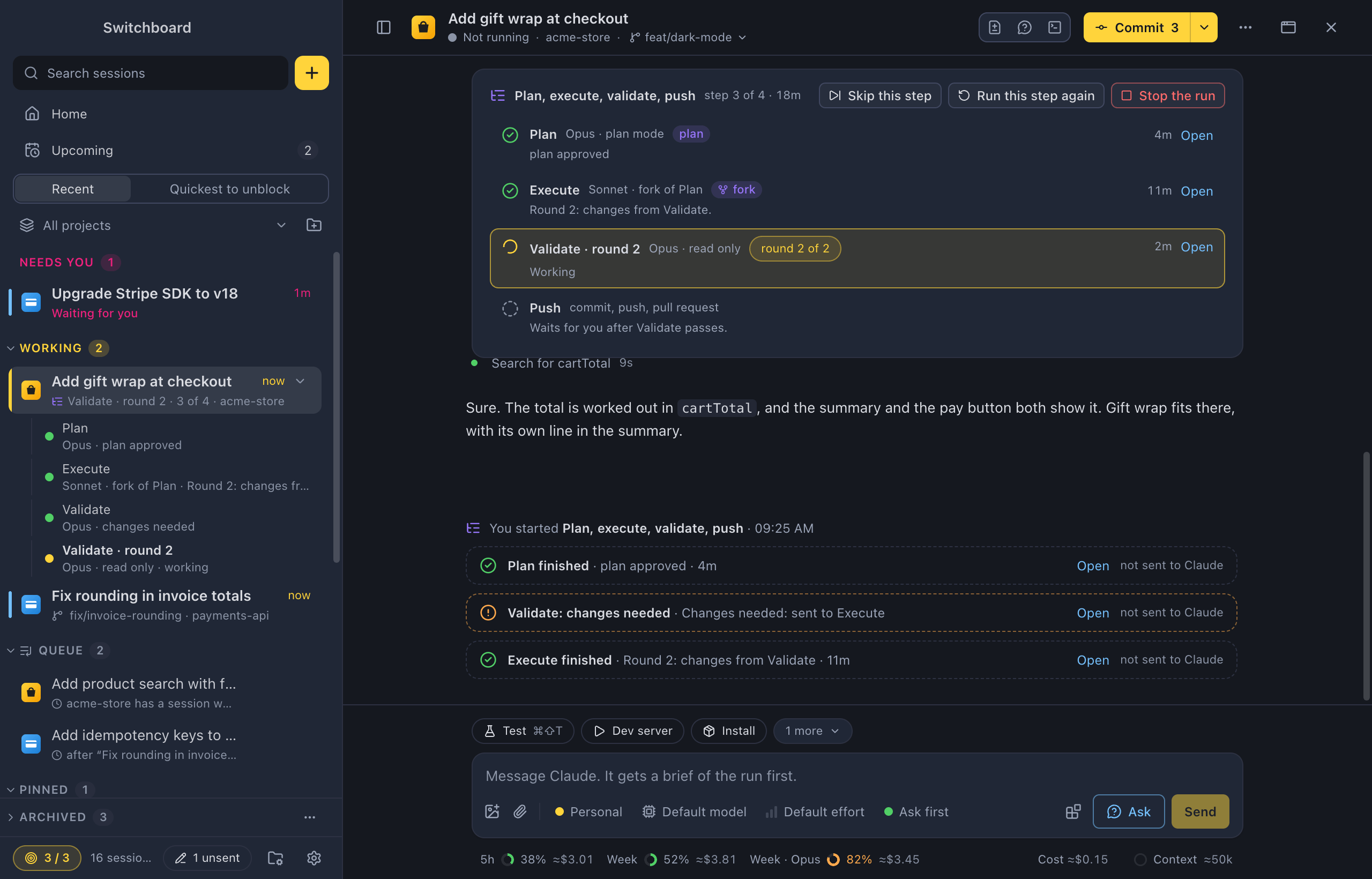
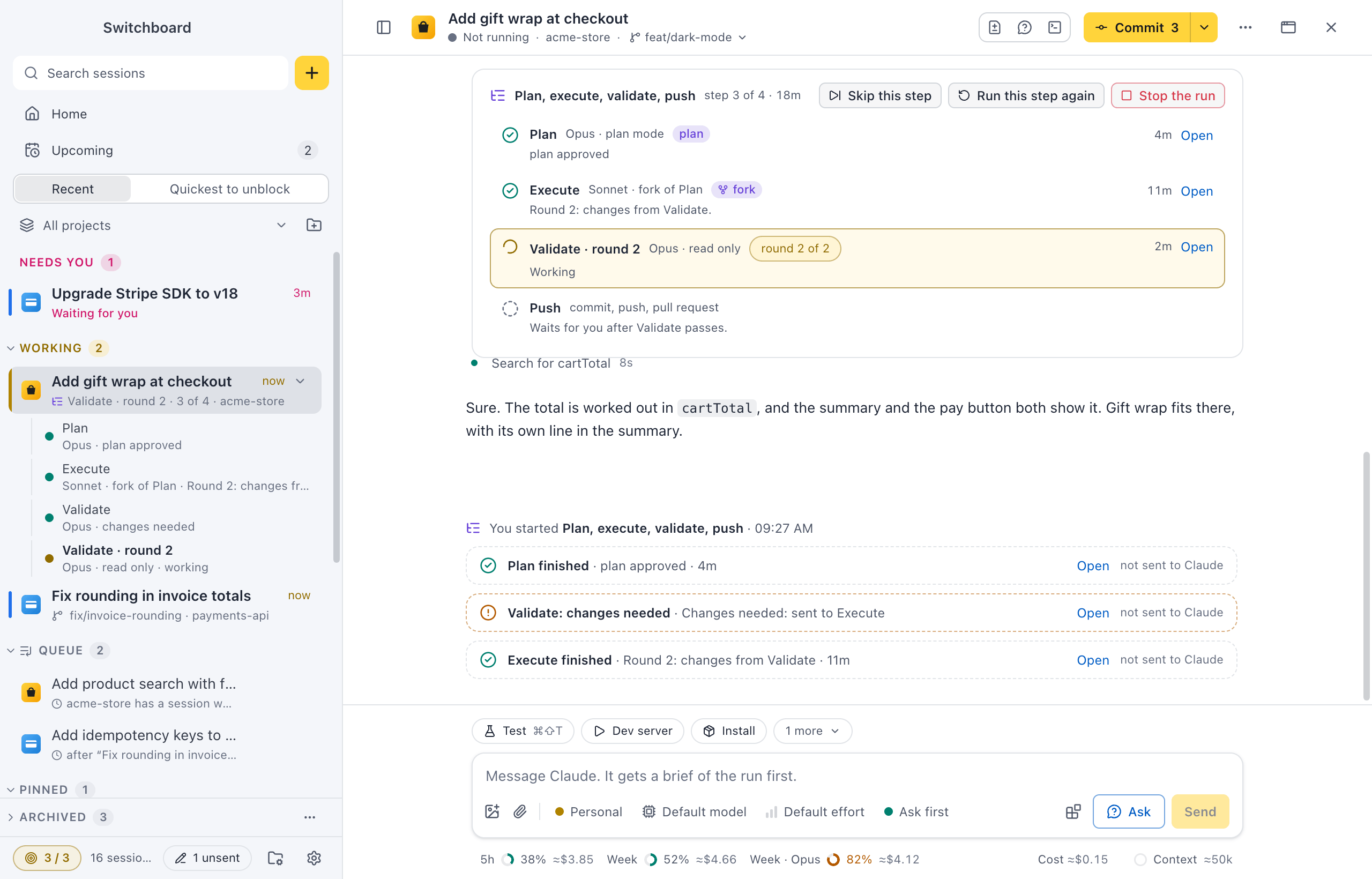
Section titled “Follow a run”In the sidebar, the parent shows where the run is, such as Validate · 3 of 4, with the pipeline icon. Open it with its arrow to see its steps under it. The parent takes the most urgent state of its steps: a step that needs you makes the parent Needs you.
The parent’s view has the step tree above the conversation. Each step shows its state, its model and mode, its line from the catch-up, how long it took, and Open. The run’s buttons are there too:
- Skip this step starts the next step.
- Run this step again starts the step again in a new session.
- Stop the run stops the step that works, and nothing starts after it.
- Continue shows when the run waits for you.
The parent’s conversation gets a row for each finished step, such as Plan finished · plan approved · 4m. These rows are for you and are not sent to Claude.
Steps hand over with @
Section titled “Steps hand over with @”A step’s prompt links the sessions it needs with @, as you link sessions in the message box: @parent is the session you ran it from, and @Plan or @Execute an earlier step. When the step starts, each becomes a real link, and Claude gets a brief of that session first: its folder, branch, what it did and its last reply. A step that links the plan step also gets the plan you approved.
The step’s first message shows a Linked: row, and What Claude got shows the briefs.
Inside a step
Section titled “Inside a step”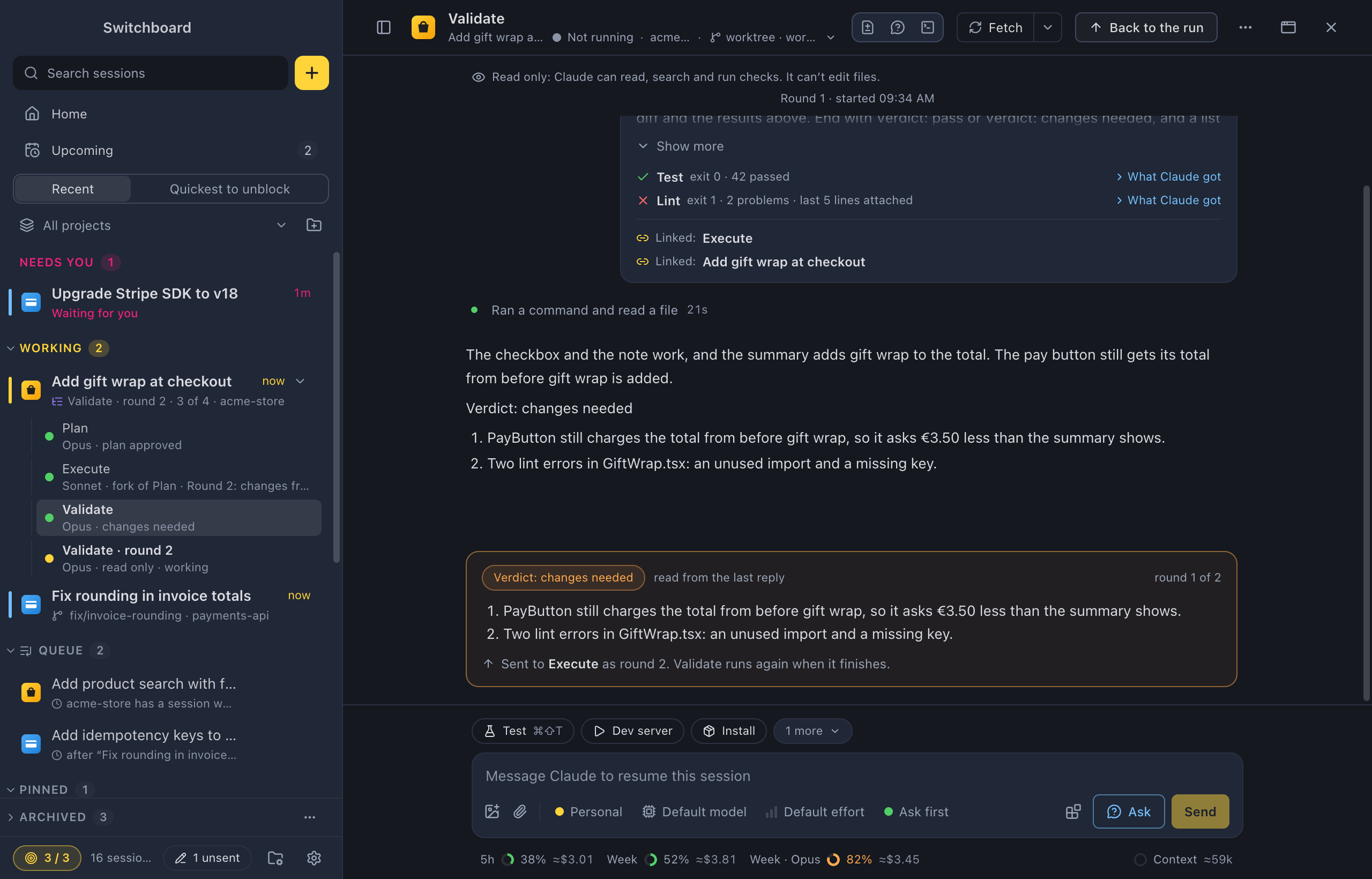
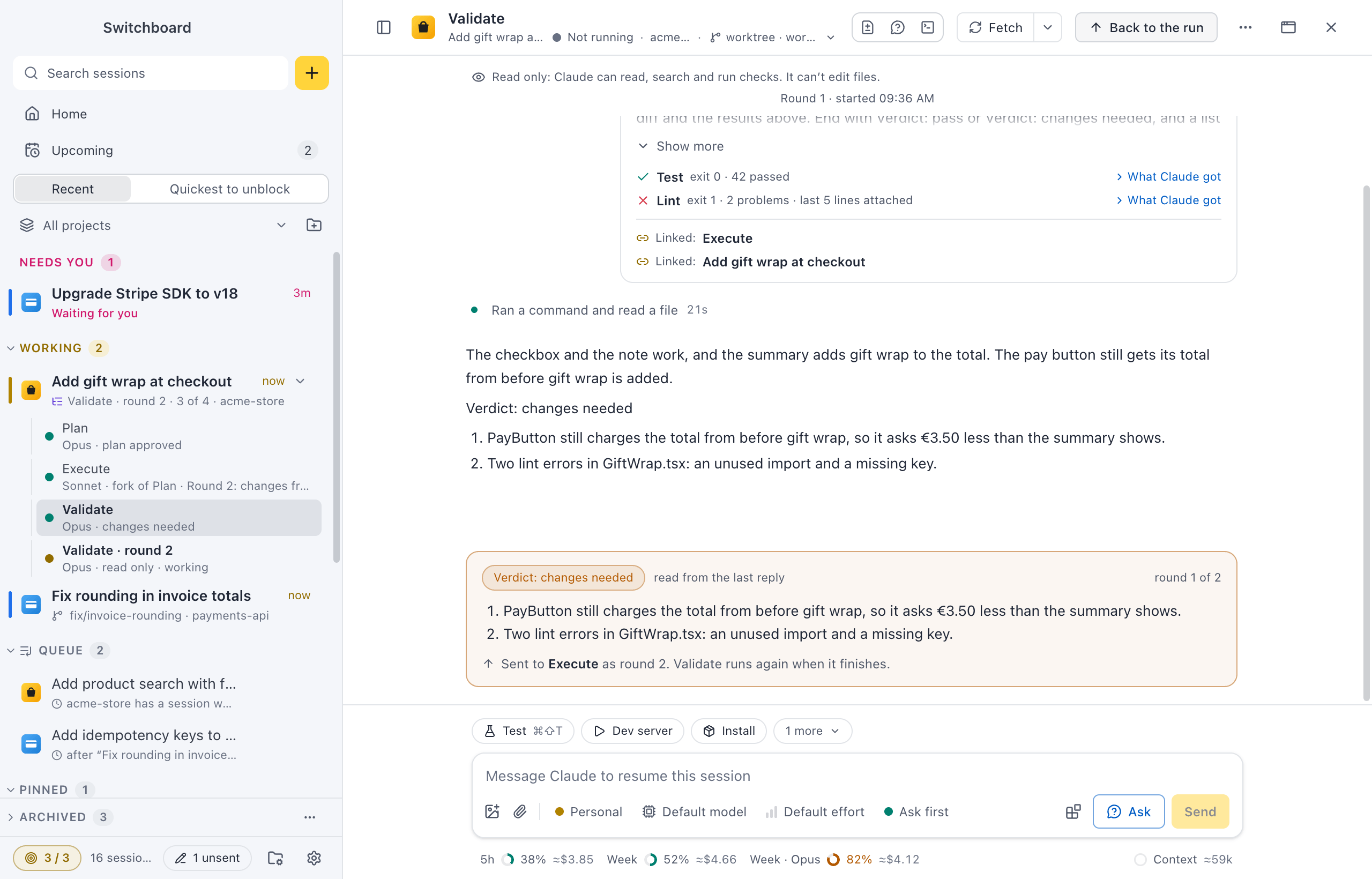
A step is an ordinary session. You can open it, read it, reply in it and stop it. Its header names the parent, and Back to the run takes you there.
- Plan mode: a step in plan mode ends with a plan to approve. When you approve it, the step keeps the plan for the steps after it and stops there; the next step builds it. With Approve the plan for me on the step, the run goes on to the next step as soon as the plan is written, without waiting for you. The plan is still kept for later steps and the pull request.
- Read only: the step shows “Read only: Claude can read, search and run checks. It can’t edit files.” Claude can read files, search, and run git status, diff, log or show.
- Run first: project actions such as Test and Lint run in the run’s folder before Claude starts. Their exit codes and the last 40 lines of their output go in the prompt, and the first message shows each with a check or a cross.
Verdicts and rounds
Section titled “Verdicts and rounds”A step can end with a verdict: its last reply says Verdict: pass or Verdict: changes needed, with a list. The step shows it on a card.
- Pass: the run goes on.
- Changes needed: the list goes to the step it names (Execute), with a link back to this step. When Execute’s turn ends, this step runs again as a new round, such as Validate · round 2, up to its number of rounds.
When the verdict still asks for changes after its last round, the run stops and offers Another round, in the step tree and in the step that found them. The changes go back to Execute once more, and Validate checks again when Execute is done. Or work on them in Execute yourself: when that turn ends cleanly, Validate checks again. You can also ask Validate what it needs first; the run still waits for the changes.
Push is Seshboard’s own step. It waits for you with the commit message Claude writes from the diff, the number of files and the branches. Choose Commit, push and open PR, Edit message first, or Stop here. The pull request’s title and description come from the task, the plan and the last verdict. It needs the GitHub CLI (gh), signed in.
Your own pipelines can push without asking: turn on Push without asking on their Push step.
When it stops
Section titled “When it stops”A step is done when its turn ended cleanly, Claude doesn’t wait for you, and its verdict, if it has one, is pass. Otherwise the run stops at that step, and says why on the parent and in the step:
- Execute ended with an error: run this step again, or reply in Execute.
- A step asks a question or for a permission: answer it in the step.
- Validate has no verdict: its last reply doesn’t end with a verdict.
- Still changes needed after 2 rounds: Another round sends the changes back to Execute. Or Continue to go on anyway, or Stop the run.
- A step with Wait for me before this step: Continue starts it.
- Paused: Seshboard was closed. The run goes on at the next start.
When you reply in the step that stopped, the run goes on once that turn ends cleanly. Notifications say when a run needs you, stopped, or is done.
Steps start through the same holds as the queue: at the focus limit a step waits for a free slot, and at a usage limit for its reset.
Write in the parent
Section titled “Write in the parent”The parent’s message box says “Message Claude. It gets a brief of the run first.” When you send, Claude gets a brief of the run before your text: each step, how it went, its verdict and the pull request. So you can ask what did the review find? there. In a run’s own row, your first message starts a session for it in the run’s folder.
Make your own
Section titled “Make your own”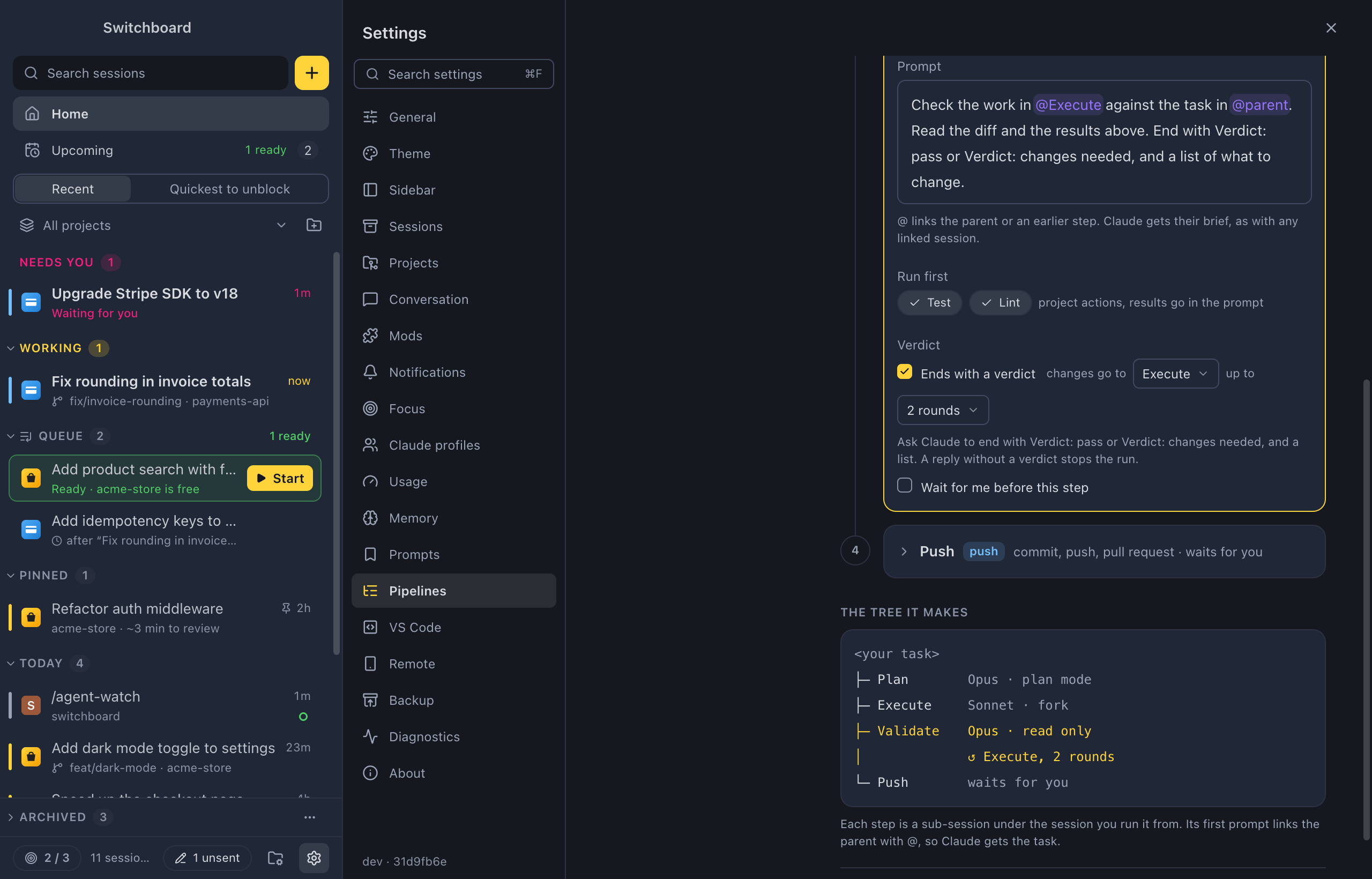
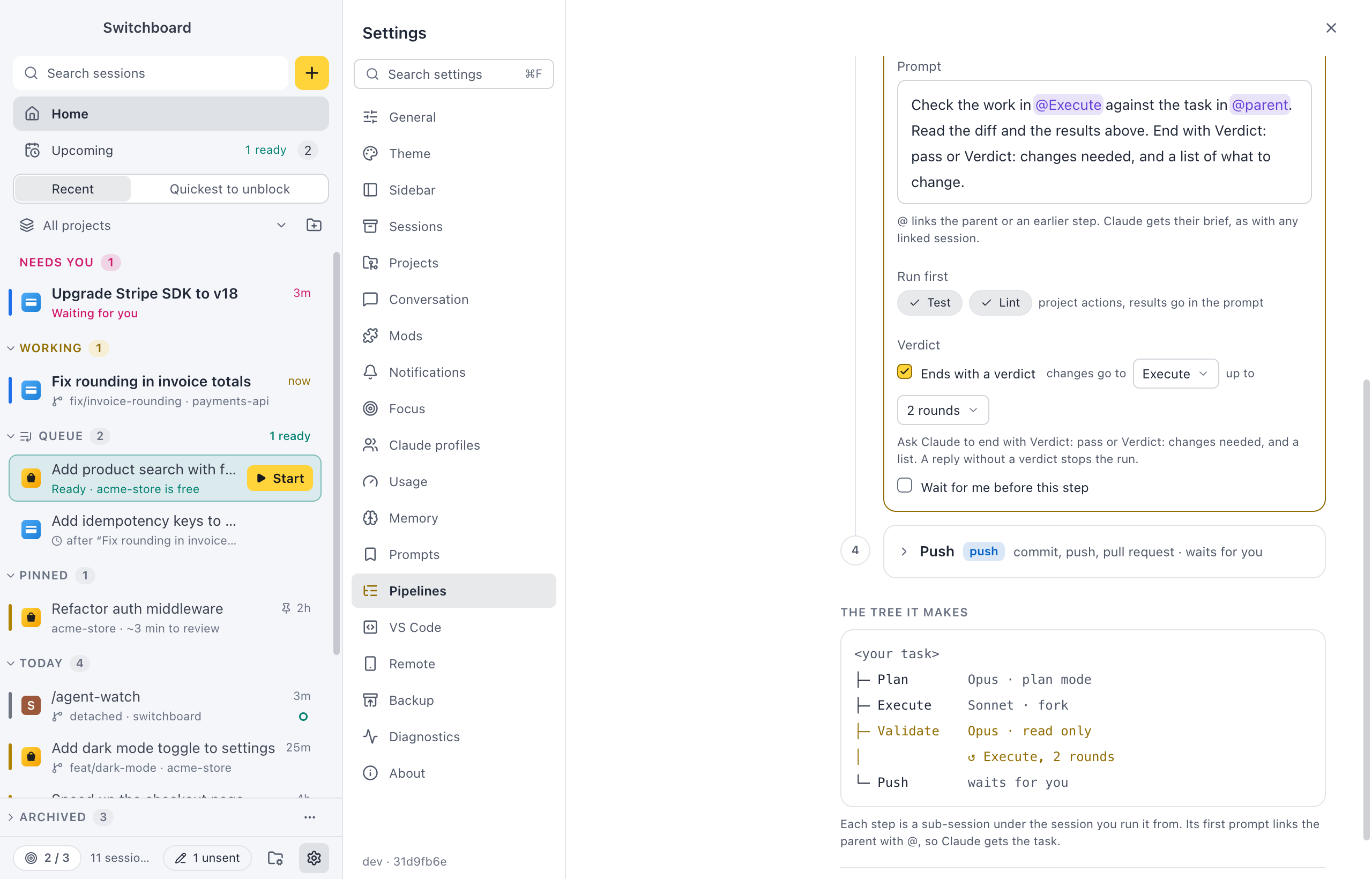
Open Settings › Pipelines. The list has the built-in pipelines, those for all projects, and those for each project. Built-ins can’t be changed: choose Duplicate to start from one. To see only your own pipelines, turn off Built-in pipelines above the list.
- Choose New pipeline, give it a name, and pick This project or All projects.
- Add steps with + Add a step. Open a step to set it up:
- Starts: fresh, or as a fork of an earlier step.
- Model: the model, effort and mode, and Read only. A step in plan mode also has Approve the plan for me.
- Prompt: type @ for the parent and the earlier steps. “@ links the parent or an earlier step. Claude gets their brief, as with any linked session.”
- Run first: project actions that run before Claude starts.
- Verdict: Ends with a verdict, which step gets the changes, and up to how many rounds.
- Wait for me before this step.
- Drag the steps into order. Push is its own kind of step and goes last.
- Choose Save.
The tree it makes on the right shows the steps as they will run. While something doesn’t add up, such as a fork of a step that comes later or an @ name that isn’t an earlier step, the editor says what, and Save waits.
Built-in pipelines
Section titled “Built-in pipelines”- Plan, execute, validate, push: Plan with Opus in plan mode, Execute as a fork of Plan with Sonnet and Accept edits, Validate fresh with Opus, read only, after Test and Lint, with changes to Execute and 2 rounds, then Push.
- Execute and validate: the same without Plan and Push.
Good to know
Section titled “Good to know”- One run, one folder. Two runs in one project each get their own worktree.
- Archive or delete as one. Archiving a run’s parent, or deleting it, takes its sub-sessions with it: the menu says Archive with its 3 steps. A run that still goes is stopped first, after you confirm.
- Your phone: the remote app shows runs and their steps, and can start one. See Remote on your phone.
- Backup: your pipelines are in the settings file (Pipelines). Runs stay on this computer.
Related
Section titled “Related”- Link sessionsMention another session with @ in the message box, and Claude gets its folder, branch, pull request, what it did and its last reply. Stack a pull request on another one without copying anything over.
- Catch-upA short briefing over a session when it finishes, so you can decide what to do next in a few seconds.
- QueueKeep prompts to start later, in the order you want them, and see when each one is ready.
- WorktreesStart a session in an isolated copy of the repository on a branch of its own, like claude --worktree.
- GitThe branch in a session's header, the git button with the next step for the branch, pull request checks, and finishing a worktree.
- Project actionsOne-click buttons for the commands and prompts you run over and over in a project.